Getting started
Download the .exe from the download page and run it. There's no installer, the app is that one file. Windows SmartScreen might warn you the first time you open it: click More info, then Run anyway.
The first time you open it, the app asks which account to use:
- Sign in with Rockstar uses your own account. You need it for anything the app does as you: bookmarks, playlists, lobbies, the profile picture, crew emblems, the played marker and GTA Online careers.
- Continue without signing in uses an account that comes with the app and that everyone shares. You can search jobs, crews and players with it, and that's about it.
You can sign in or out later in Settings.
Is it a mod?
No. It doesn't touch the game files, doesn't inject anything and doesn't read the game's memory. It sends Rockstar's services the same requests the Social Club website and the game already send. It's still an unofficial tool though, and Rockstar hasn't documented any of this, so use it at your own risk.
Signing in
There is one sign-in, in Settings or on the card a page shows when it needs your account. It opens Rockstar's own sign-in page, the same one the Rockstar Games Launcher shows, so you type your password into their page and not into the app. The app only keeps the session Rockstar hands back.
That session is used in two ways. Search, bookmarks, profiles, careers and crew emblems go through the Social Club website, like a browser would. Playlists, Lobbies and the profile picture go through GTA Online's own services, the ones the game talks to, and for those the app has to open a game session on your account.
Why the game gets signed out
Rockstar allows one game session per account at a time, and a new one ends the one before. So if you're in GTA Online on the same account when the app opens a game session, the game tells you the account signed in somewhere else and drops you out of GTA Online. It works the other way too: going back online in the game ends the app's session, and the app starts a new one the next time it needs it.
Note that the app opens a game session only when one of those pages needs it, never just because you signed in. Search, bookmarks, profiles and crew emblems are website requests, and as far as I've seen they don't affect the game, so you can use them while you play.
Using Playlists and Lobbies around the game
- Use those pages before you launch the game, or after you quit.
- If GTA V is running on this PC, the app asks before it opens a game session. It can't see a game running on another PC or on a console, though.
- For Lobbies, you can sign in to the app with a second account that owns GTA V. The game on your main account then isn't affected.
Finding jobs
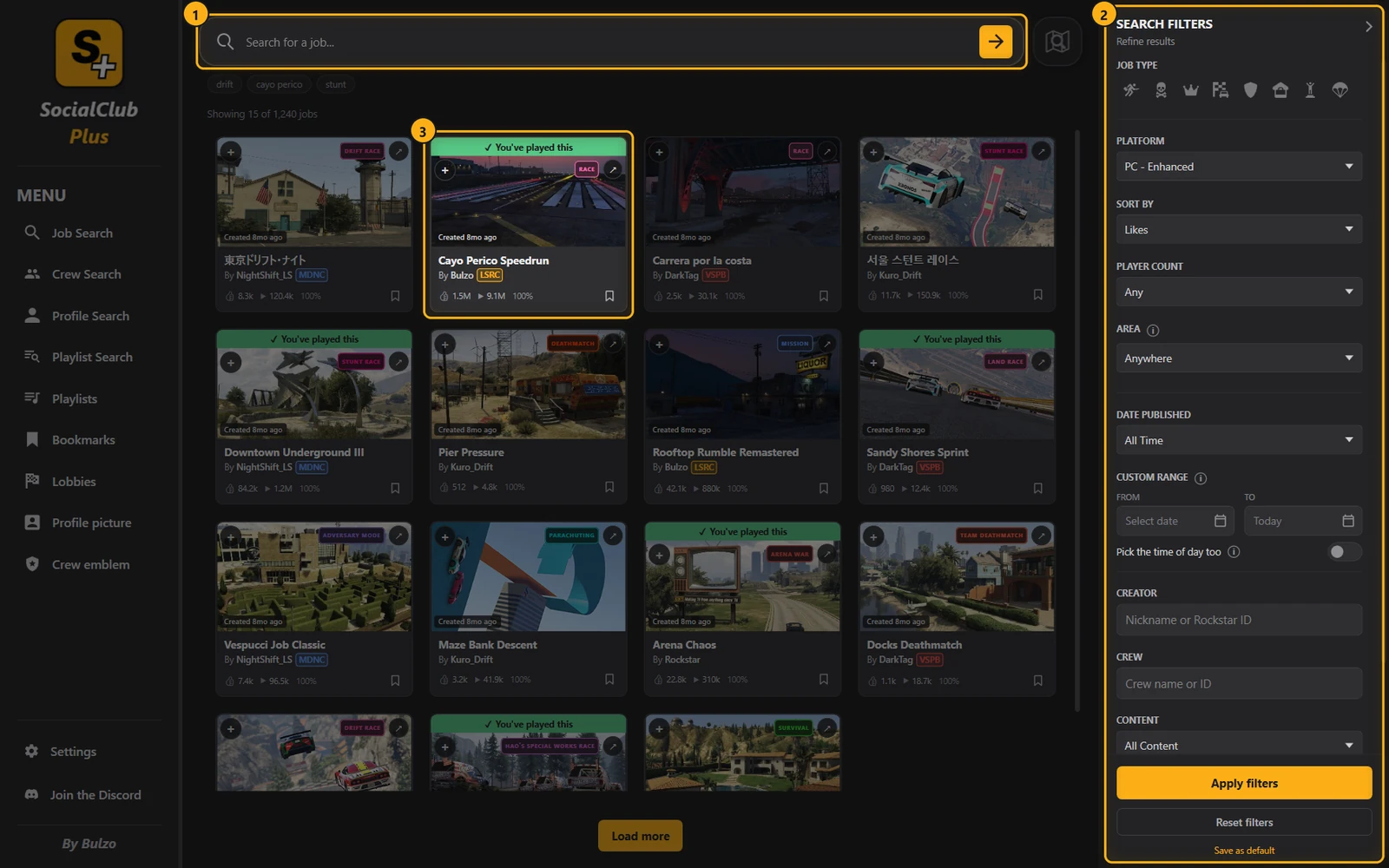
- Search by the job's name and press Enter. Start with
#to search the creators' tags instead, for example#derby. Your recent searches show up below the box. - Filters change the results as soon as you pick something: platform, type and sub type (Stunt Race, Land Race, Drift Race, Open Wheel and so on), sort, player count, area, creator, crew, when it was published, and whether it's Rockstar's own, verified, Community Series or trending. Trending lists recent jobs that a lot of people are playing right now.
- A job opens its details when you click it.
For the date you can also pick a custom range, with a time of day if you want, in your computer's time. A range with no end date runs to today. Note that a custom range goes by when the job was last updated, while the preset ones (today, last week and so on) go by when it was first published. That's how the Social Club does it.
Reset filters clears the filters and the search text but keeps your platform, and Save as default sets what Reset goes back to. The filters that aren't obvious have an i beside them: hover over it and it tells you what they do.
Job cards
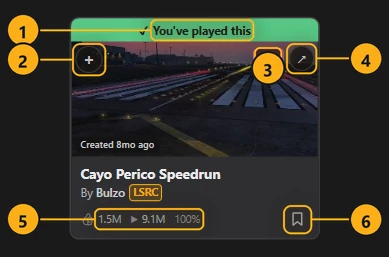
- You have played this job (your own account only).
- Add to playlist.
- Job type.
- Open it on the Social Club website.
- Likes, plays and the share of positive ratings.
- Bookmark (your own account only).
The creator's name opens their profile and the crew tag opens the crew. You can change the size of the cards in Settings.
Search by area
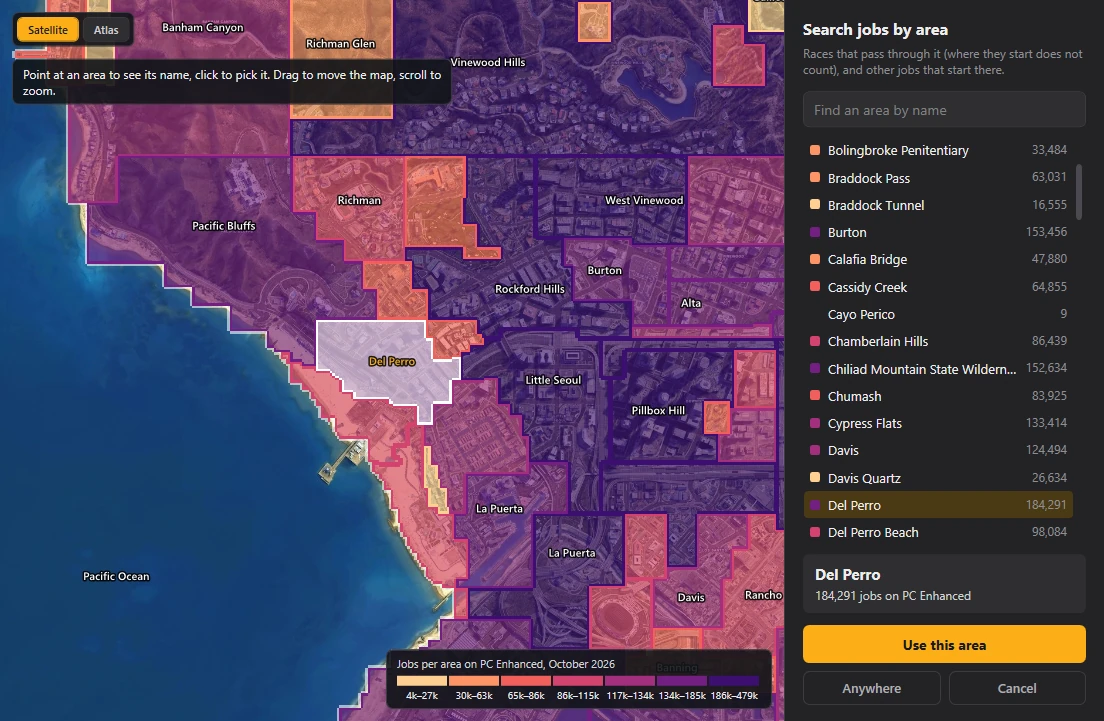
The map button beside the search bar opens a map of GTA's zones, coloured by how many jobs each one has. Click a zone and the app searches it straight away, with the other filters as they are. If you already know the name, the Area filter lists every zone too. You can switch between the satellite and the road map, and the app remembers which one you used.
A race is in an area when its checkpoints go through it, not where it starts. Any other job is in the area it starts in. This is how the Social Club files them, the app just asks for it. The zones are the game's own, and where they overlap the map follows the same rule the game does, so a tunnel or a creek can show up as a zone of its own. That's the game, not a bug.
A job's details
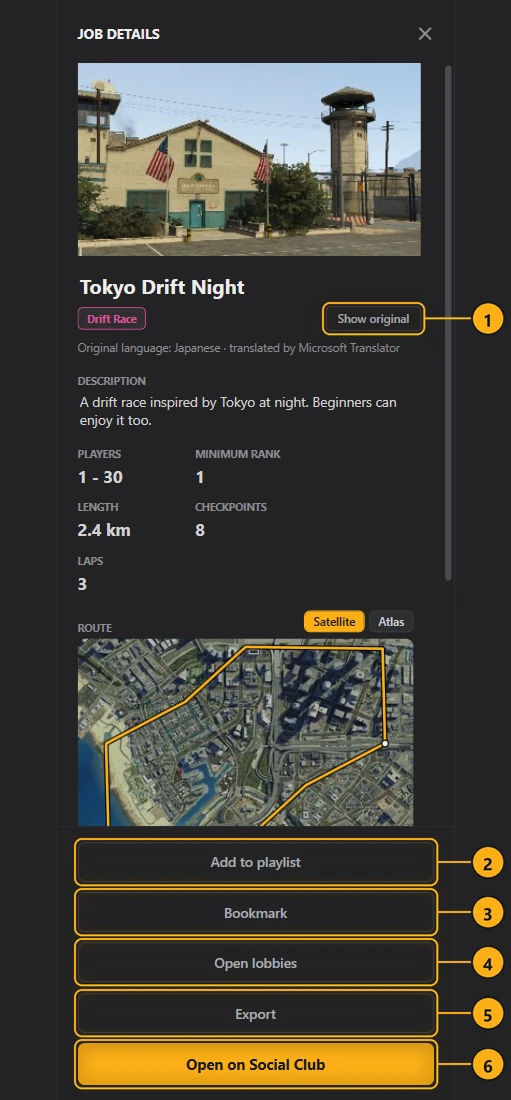
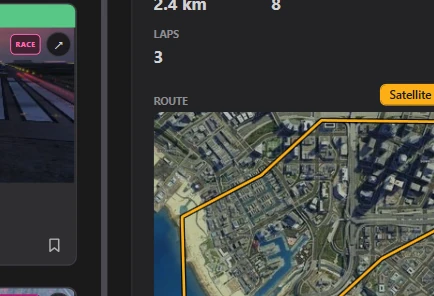
You get the description, the creator and their crew, likes, plays, when it was published, players, minimum rank, and for races the length, checkpoints, laps and the route on the map. With your own account it also says when you last played it. A click on one of the creator's tags lists every job with that tag.
- Translate puts the title and description in the app's language, and Show original puts them back. Nothing is sent until you press it.
- Add to playlist.
- Bookmark.
- Open lobbies lists the open lobbies of this job (Lobbies has to be turned on).
- Export saves the job's creator file, the one the game loads to run the job, exactly as Rockstar publishes it.
- Open on Social Club.
Bookmarks
These are the jobs your account has bookmarked, the same list GTA Online shows under pause menu, Online, Jobs. What you change here changes in the game too. You need your own account for this page.
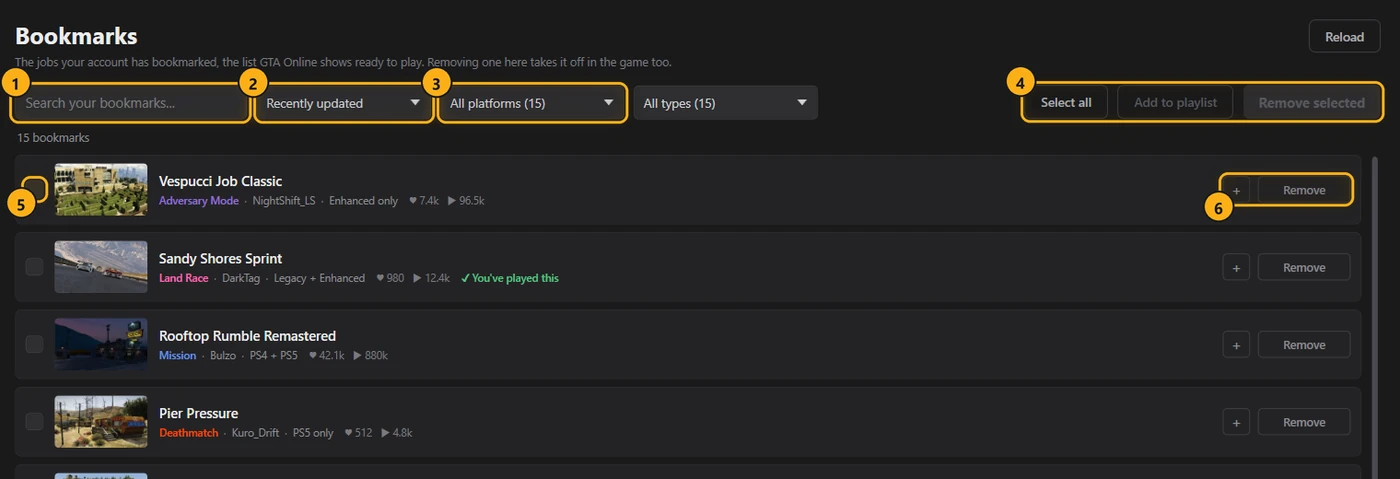
- Search.
- Order.
- Platform. A Social Club account can be linked to PC, PlayStation and Xbox at the same time, and each platform has its own list, the one the game there shows.
- Select all, remove selected.
- Select a row.
- Add to playlist, remove. A removed row stays on the page with Restore until you leave it.
When your bookmarks are of more than one type, a type picker shows up next to the others, so you can keep only stunt races, captures and so on. A row says in green when you have played the job, like the search cards do.
If you have a lot of bookmarks (I tested it with about 1,000), the app reads them a bit at a time so Rockstar doesn't answer with "Too many requests", and a bar shows how far it has got.
Playlists
Here you build a playlist of up to 16 jobs and save it to your Rockstar account, where GTA Online lists it, without having the game open. It works on PC only, Legacy and Enhanced. The page is off until you read its notice and accept it, and it needs you signed in with your own account.
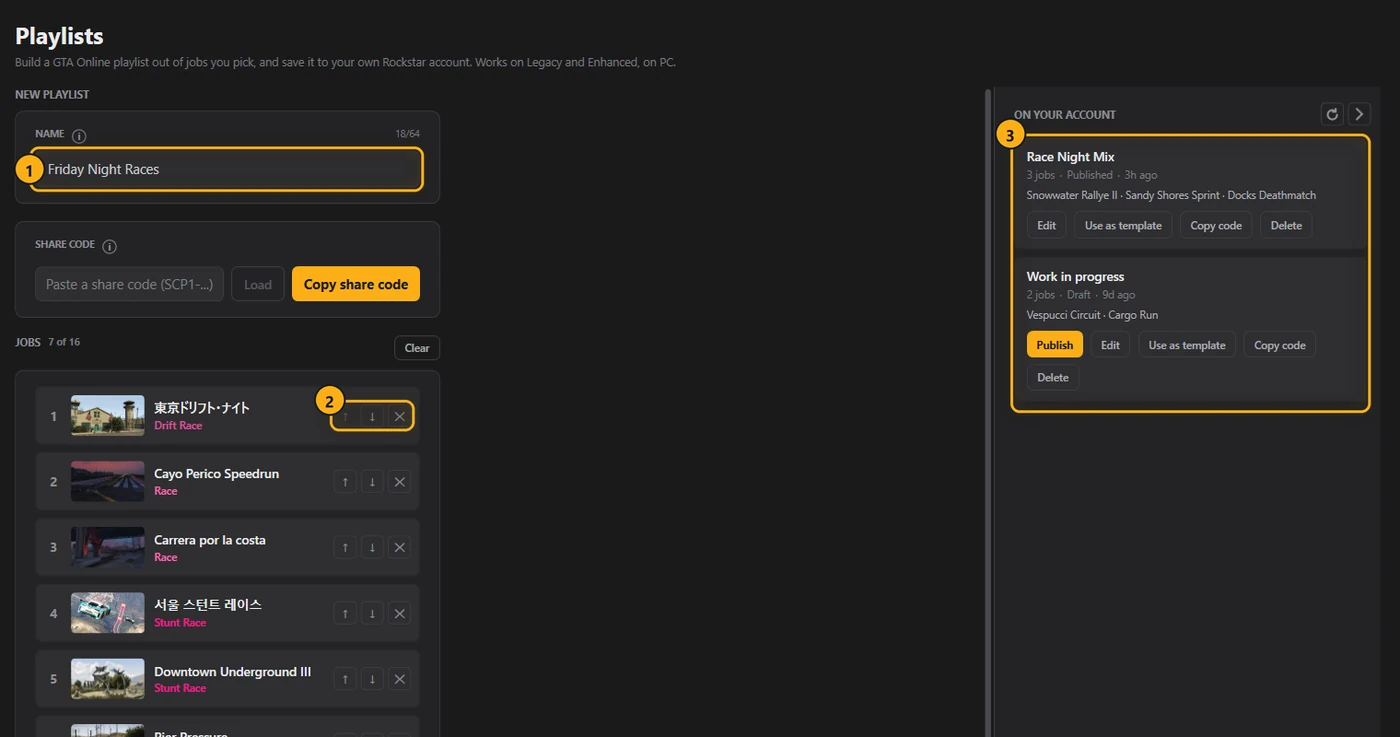
- Name: up to 64 characters, since GTA itself only keeps the first 63. Rockstar's word filter checks the name before anything is saved, and if it refuses it, the app shows you Rockstar's own answer.
- Order: move or remove jobs. The game plays them in this order, unless you turn on Shuffle when you start the playlist.
- On your account: your playlists, with Edit, Use as template, Publish for a draft, Copy code and Delete.
You add jobs with the + on a card, with Add to playlist in a job's details, or by ticking bookmarks on the Bookmarks page. Create and publish makes it playable, Save as draft keeps it on your account without publishing it. Rockstar can take a minute or two to show the change, and a game that's already running needs a restart to list it.
Legacy and Enhanced keep separate playlists. An Enhanced playlist can hold Legacy jobs too, but a Legacy one only Legacy jobs. Rockstar drops the jobs that don't fit without telling you, so the app reads the playlist back after creating it and tells you how many made it.
To share a playlist, Copy share code gives you one line of text with its name, build and jobs, and nothing about your account. Whoever gets it pastes it in the builder and presses Load. Copying and loading a code don't need you signed in, only creating the playlist does.
Before you use it
- Saving a playlist opens a game session, so it signs GTA Online out on the same account. The app asks first if the game is running on this PC (why).
- On Enhanced, the account must have played GTA Online Enhanced at least once, otherwise Rockstar refuses every save.
- Rockstar hasn't documented any of this. It may stop working and it may put your account at risk, so trying it first on an account you can afford to lose isn't a bad idea.
Playlist search
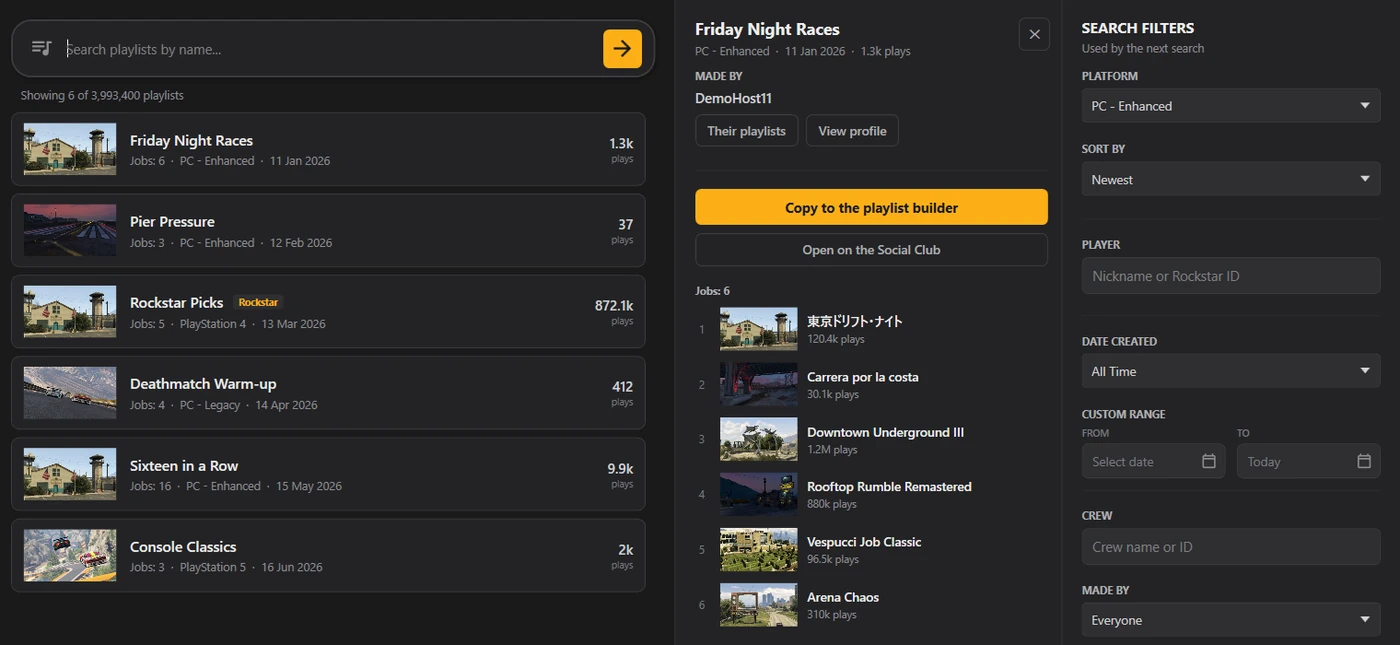
This one searches everyone's playlists, not just yours. The Social Club API has a playlist search the website doesn't use, with more filters than the website shows. You can search by name, by one player (their nickname or Rockstar ID), by crew, Rockstar's own or players' ones, and by when they were made: today, the last week, month or year, or between any two dates. You can sort by newest, most played or name, on any platform, and you don't need an account.
A playlist opens with its jobs and who made it. Copy to the playlist builder brings a PC playlist into the builder the same way a share code does, so you can save your own copy. On a player's profile, View playlists opens their playlists here.
Lobbies
This page lists the GTA Online lobbies open right now: job lobbies someone is hosting and waiting to fill, and free roam sessions. The game's Quick Job is pretty bad at finding job lobbies, especially for community jobs, so a host can wait a long time while nobody finds them. This is the list the game doesn't show you. It only reads, it never hosts, changes or joins anything. Like Playlists, it's off until you accept its notice and it needs you signed in with your own account.
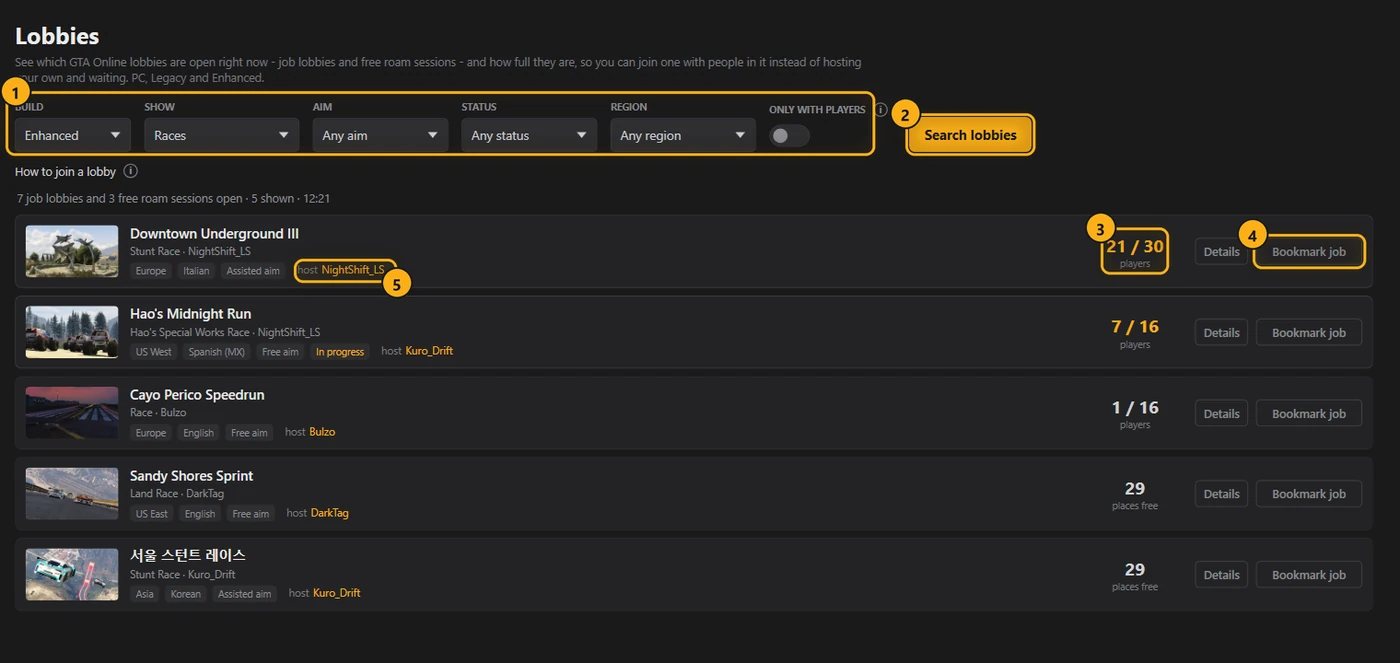
- Filters: the build, what to show (one type of job, every job, free roam or everything), aim, status, region and only lobbies with players. They work on the last search, without searching again.
- Search brings every open lobby on that build. You have to wait at least 15 seconds between searches.
- Players out of the job's maximum, or the free places while the job isn't known yet.
- Bookmark job: see below.
- Host: the name is looked up when you ask for it, and then it opens their profile.
A lobby only carries a hash of its job's ID, so the app can name the job only if it already knows it. On Enhanced it has an index of every published job, on Legacy it doesn't yet, so you'll see more lobbies there that say the job isn't identified.
A job marked In progress has already started, so if you join it you wait for it to end or watch as a spectator. The Status filter shows only the jobs that haven't started yet, or only the ones in progress.
Joining a lobby
Joining happens in the game, the app can't put you in a lobby. What you can do is bookmark the lobby's job and start it from your bookmarked jobs (pause menu, Online, Jobs). The game looks for an open lobby of that job before hosting a new one, so it should put you in it. Note that the game only matches players with the same aim setting. Otherwise, find out who the host is, open their profile, add them as a friend and join from the friends list.
Before you use it
- A search opens a game session, so it signs GTA Online out on the same account. Search before launching the game, or sign in to the app with a second account that owns GTA V (why).
- Search the build your account last played GTA Online on. Rockstar refuses the other one, and the page tells you which one to use.
- Rockstar hasn't documented this either, and using it may be against their terms.
Crews and players
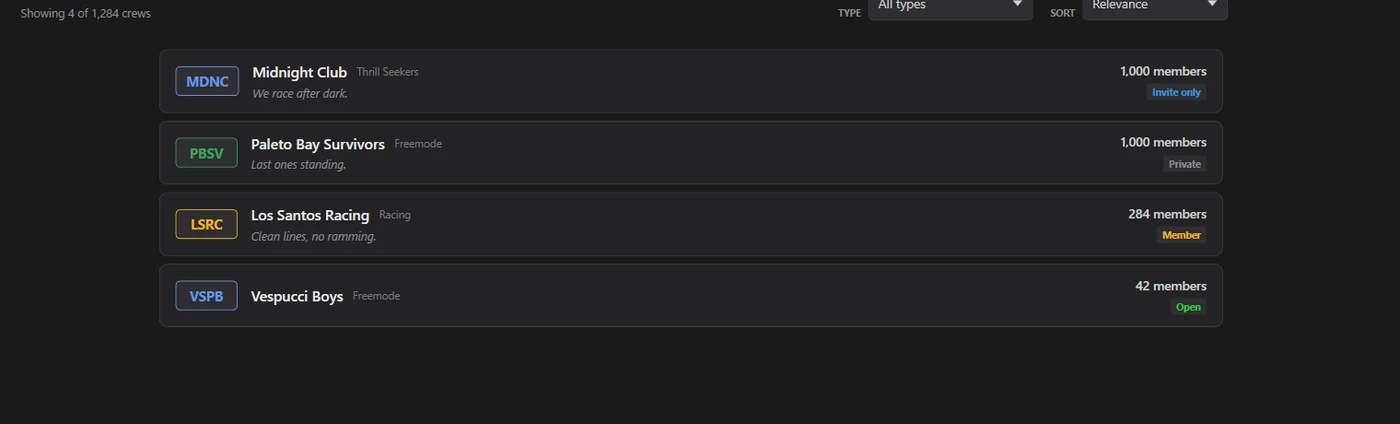
- Crew Search finds crews by name, with their tag, motto, members, and whether they're open, private or invite only.
- Profile Search finds players by nickname or Rockstar ID. You see their crews, friends, linked accounts (PlayStation, Xbox, Steam, Twitch and so on), recent photos and games owned, with View jobs for the jobs they published and View playlists for their playlists.
- GTA Online career shows rank, money, races, skills, weapons, vehicles and awards per platform, only for players who allow stat comparison, and your own. Signed in, Compare with me puts your numbers next to theirs.
Profile picture
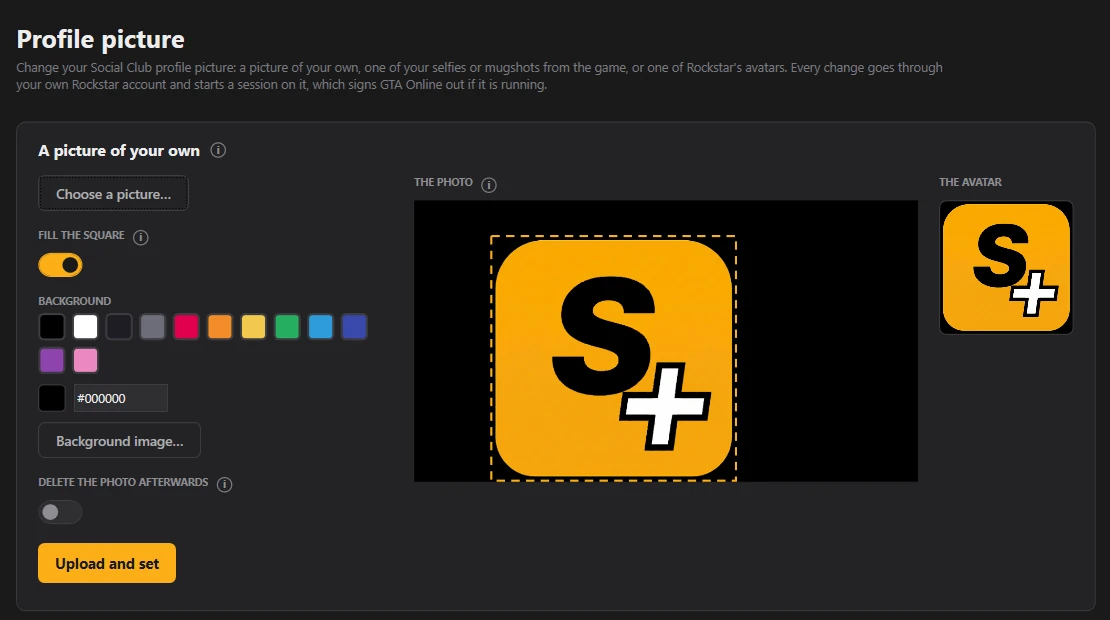
Rockstar doesn't let you use your own image as your Social Club profile picture anymore, and the tools that used to do it don't really work now. This page does it the way the game does: it uploads your image as a photo and then sets it as your profile picture. The game doesn't need to be running, but you need to be signed in with your own account.
- A picture of your own. Rockstar cuts the avatar out of the middle of a photo, so the app puts your picture in that square and fills the rest with a colour or an image you pick. You see the whole photo and the avatar it makes before uploading. Note that the photo goes on your account like any photo you take in the game, so it's public, background included. You can have the app delete it once the avatar is set, the avatar stays.
- Your selfies and mugshots from the game, the same ones the overlay's Change Avatar shows.
- Rockstar's avatars, the stock ones.
The new picture usually shows up within a minute or two. This page opens a game session too, so if you're in GTA Online on that account you'll be signed out of it (why). The app asks first if the game is running.
Crew emblem
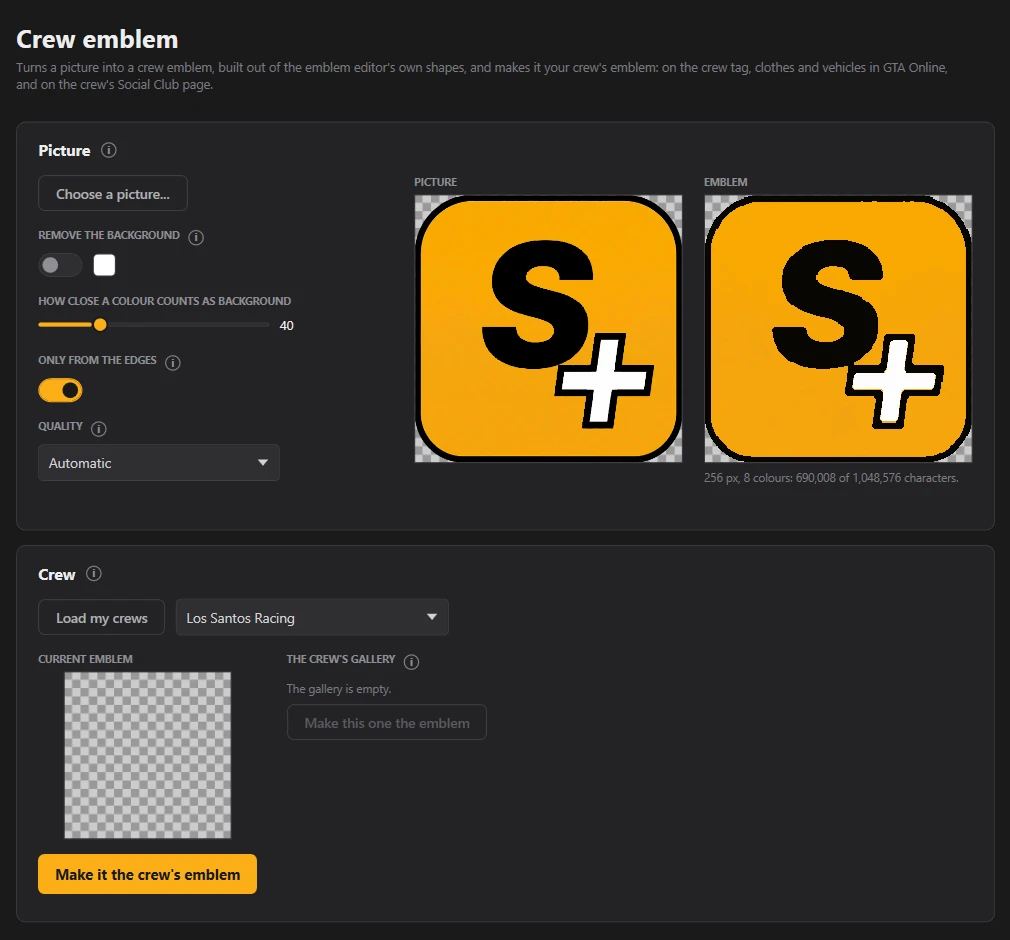
This page turns a picture into a crew emblem and makes it the active emblem of one of your crews, as long as your rank in that crew can publish emblems. You can take a background colour out of the picture, and the preview shows the emblem over a checkerboard so you can see what's transparent. The app builds the emblem out of the emblem editor's own shapes, and fits the size and the number of colours to the limit the Social Club has for an emblem.
The crew's earlier emblems are listed too, and you can make one of them active again. This goes through the Social Club website like its emblem editor did, so it doesn't open a game session.
Settings and files
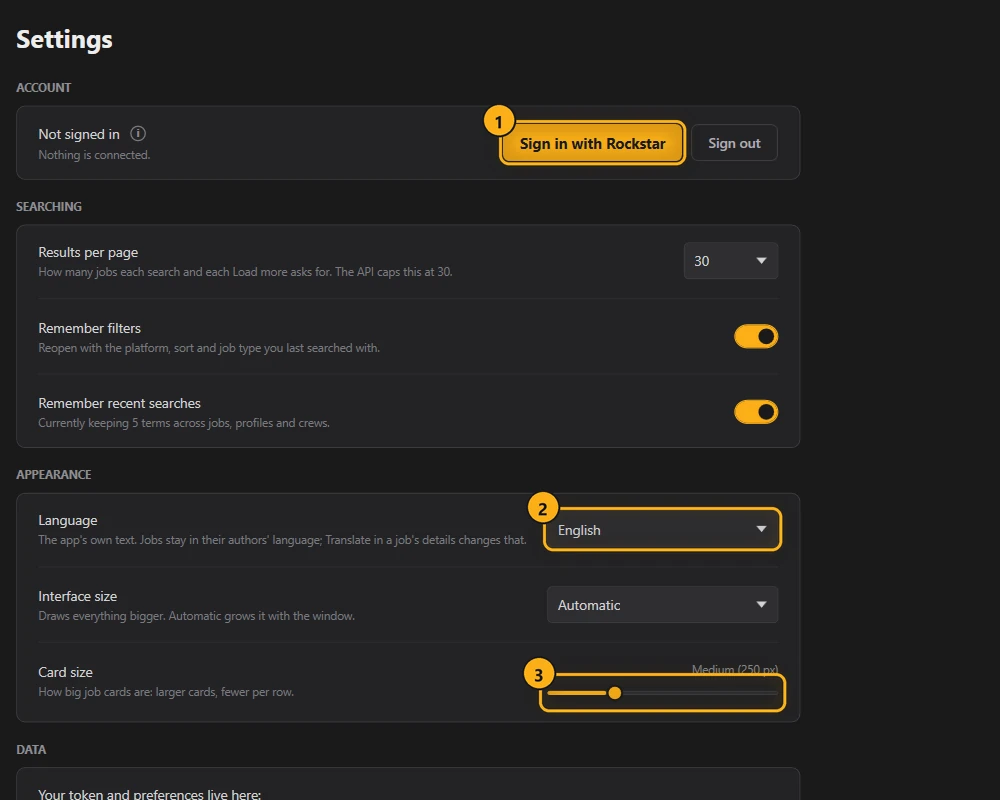
- Account: sign in or out.
- Language: English, Italian, Spanish, German, French or Russian.
- Card size.
Under Appearance, the interface grows with the window by default, so a maximised window on a big screen looks like the normal one, only bigger. If you prefer, you can set a fixed size from 100% to 200% instead. Settings also has the terms and an Acknowledgements window, with the people and the tools that helped build the app.
Everything the app saves is in %LOCALAPPDATA%\SocialClubPlus. To uninstall it, delete the .exe and that folder.
Questions
Ask on the Discord server. If something breaks, tell me the version (it's in Settings) and what you did before it happened.